<br />
<b>Notice</b>:  Function _load_textdomain_just_in_time was called <strong>incorrectly</strong>. Translation loading for the <code>redux-framework</code> domain was triggered too early. This is usually an indicator for some code in the plugin or theme running too early. Translations should be loaded at the <code>init</code> action or later. Please see <a href="https://developer.wordpress.org/advanced-administration/debug/debug-wordpress/">Debugging in WordPress</a> for more information. (This message was added in version 6.7.0.) in <b>/home/ahmetozg/blog/wp-includes/functions.php</b> on line <b>6131</b><br />
<br />
<b>Notice</b>:  Function _load_textdomain_just_in_time was called <strong>incorrectly</strong>. Translation loading for the <code>di-blocks</code> domain was triggered too early. This is usually an indicator for some code in the plugin or theme running too early. Translations should be loaded at the <code>init</code> action or later. Please see <a href="https://developer.wordpress.org/advanced-administration/debug/debug-wordpress/">Debugging in WordPress</a> for more information. (This message was added in version 6.7.0.) in <b>/home/ahmetozg/blog/wp-includes/functions.php</b> on line <b>6131</b><br />
<br />
<b>Notice</b>:  Function _load_textdomain_just_in_time was called <strong>incorrectly</strong>. Translation loading for the <code>insert-headers-and-footers</code> domain was triggered too early. This is usually an indicator for some code in the plugin or theme running too early. Translations should be loaded at the <code>init</code> action or later. Please see <a href="https://developer.wordpress.org/advanced-administration/debug/debug-wordpress/">Debugging in WordPress</a> for more information. (This message was added in version 6.7.0.) in <b>/home/ahmetozg/blog/wp-includes/functions.php</b> on line <b>6131</b><br />
<br />
<b>Notice</b>:  Function _load_textdomain_just_in_time was called <strong>incorrectly</strong>. Translation loading for the <code>voice</code> domain was triggered too early. This is usually an indicator for some code in the plugin or theme running too early. Translations should be loaded at the <code>init</code> action or later. Please see <a href="https://developer.wordpress.org/advanced-administration/debug/debug-wordpress/">Debugging in WordPress</a> for more information. (This message was added in version 6.7.0.) in <b>/home/ahmetozg/blog/wp-includes/functions.php</b> on line <b>6131</b><br />
<?xml version="1.0" encoding="UTF-8"?><rss version="2.0"
	xmlns:content="http://purl.org/rss/1.0/modules/content/"
	xmlns:wfw="http://wellformedweb.org/CommentAPI/"
	xmlns:dc="http://purl.org/dc/elements/1.1/"
	xmlns:atom="http://www.w3.org/2005/Atom"
	xmlns:sy="http://purl.org/rss/1.0/modules/syndication/"
	xmlns:slash="http://purl.org/rss/1.0/modules/slash/"
	>

<channel>
	<title>visual studio &#8211; Ahmet Özgün Özcan</title>
	<atom:link href="https://blog.ahmetozgunozcan.com.tr/tag/visual-studio/feed/" rel="self" type="application/rss+xml" />
	<link>https://blog.ahmetozgunozcan.com.tr</link>
	<description>Ahmet Özgün Özcan Blog</description>
	<lastBuildDate>Sat, 04 Dec 2021 04:53:23 +0000</lastBuildDate>
	<language>tr</language>
	<sy:updatePeriod>
	hourly	</sy:updatePeriod>
	<sy:updateFrequency>
	1	</sy:updateFrequency>
	<generator>https://wordpress.org/?v=6.0.2</generator>
	<item>
		<title>Visual Studio Locate In Solution Explorer</title>
		<link>https://blog.ahmetozgunozcan.com.tr/visual-studio-locate-in-solution-explorer/</link>
					<comments>https://blog.ahmetozgunozcan.com.tr/visual-studio-locate-in-solution-explorer/#respond</comments>
		
		<dc:creator><![CDATA[Ahmet Özgün ÖZCAN]]></dc:creator>
		<pubDate>Tue, 17 Dec 2019 01:03:24 +0000</pubDate>
				<category><![CDATA[Visual Studio]]></category>
		<category><![CDATA[shortcut]]></category>
		<category><![CDATA[visual studio]]></category>
		<guid isPermaLink="false">https://blog.ahmetozgunozcan.com.tr/?p=1628</guid>

					<description><![CDATA[Visual Studio ile yazılım geliştirirken açık olan dosyanın Solution Explorer kısmında seçili hale getirlmesinin yöntemlerini paylaşacağım. Visual studio editörde aktif olan dosya için otomatik seçim yapabiliyor. Bu özelliğin aktif olması için aşağıdaki çerçeve ile gösterilen seçeneğin seçili olması gerekmektedir. Tools-&#62;Options-&#62;Projects and solutions-&#62;General-&#62;”Track Active Item in Solution Explorer”=true Bu kullanım kimi yazılımcılar için faydalı olabilir. Ama [&#8230;]]]></description>
										<content:encoded><![CDATA[
<p>Visual Studio ile yazılım geliştirirken açık olan dosyanın Solution Explorer kısmında seçili hale getirlmesinin yöntemlerini paylaşacağım.</p>


<p>Visual studio editörde aktif olan dosya için otomatik seçim yapabiliyor. Bu özelliğin aktif olması için aşağıdaki çerçeve ile gösterilen seçeneğin seçili olması gerekmektedir.</p>


<blockquote class="wp-block-quote"><p><em>Tools-&gt;Options-&gt;Projects and solutions-&gt;General-&gt;”Track Active Item in Solution Explorer”=true</em></p></blockquote>


<figure class="wp-block-image is-style-default"><img src="https://cdn-images-1.medium.com/max/800/1*7gJpyJxRznE6VJQ7qWAG1g.png" alt=""/><figcaption><em>Track Active Item in Solution&nbsp;Explorer</em></figcaption></figure>


<p>Bu kullanım kimi yazılımcılar için faydalı olabilir. Ama özellikle büyük projelerde beni rahatsız ediyor. Solution Explorer üzerinde “Selected File” değişikliği ve scroll hareketleri oluşuyor. Bilerek açmış olduğunuz bir klasör içinde iken bir anda sizin seçiminizden çıkıp editörde seçilen dosyaya yöneliyor. İşte bu sebeple bu “track” işlemini ben istediğim zaman yapmak istiyorum diyorsanız, “Locate In Solution Explorer” özelliğine veya işlevine ihtiyacınız var.</p>


<h4>Locate In Solution&nbsp;Explorer</h4>


<p>Üzerinde çalışmış olduğunuz dosyayı Solution Explorer içerisinde seçili hale getirmektir.&nbsp;</p>


<p><strong>Shortcut</strong></p>


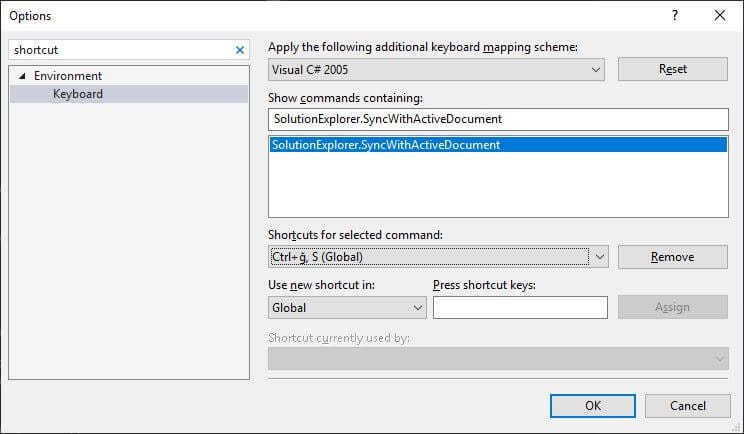
<p>Tools -&gt; Options ile açılan pencerede, arama kısmına “shortcut” yazıyoruz. Keyboard’u seçiyoruz. Show commands containing kısmına “<strong>SolutionExplorer.SyncWithActiveDocument</strong> “ yazıyoruz. Aşağıdaki gibi bir ekran gelecek.</p>


<figure class="wp-block-image is-style-default"><img src="https://cdn-images-1.medium.com/max/800/1*PhSPeWndfKC-PED8iXI53Q.jpeg" alt=""/></figure>


<p>Bu ekanda görüldüğü üzere bendeki kısayol “Ctrl+ğ,S” olarak görülmektedir. Yine isterseniz buradan yeni bir shortcut key verebilirsiniz. Kod yazdığınız dosya üzerindeyken bu tuş kombinasyonları ile seçim yapabilirsiniz.</p>


<p><strong>ReSharper</strong></p>


<p>Visual studio ile kod geliştirirken belli bir süre ReSharper kullandım. Bu süre zarfında menüye, context menüye ve toolbara bu özelliği eklemek oldukça basit. Bu işlem için aşağıdaki bağlantı size yardımcı olacaktır.</p>


<p></p>


<p><strong>Sync with Active Document</strong></p>


<p>İsterseniz bu işlemleri yapmadan aşağıda sarı dikdörtgen ile gösterdiğim butonu (Sync with Active Document) kullanarak editörde aktif dosyayı seçili hale getirebilirsiniz. Sanki en kolay yöntemi bu&nbsp;.&nbsp;🙂</p>


<figure class="wp-block-image is-style-default"><img src="https://cdn-images-1.medium.com/max/800/1*5Sh-b-CsOpaQmc5e6NlQmQ.jpeg" alt=""/></figure>
]]></content:encoded>
					
					<wfw:commentRss>https://blog.ahmetozgunozcan.com.tr/visual-studio-locate-in-solution-explorer/feed/</wfw:commentRss>
			<slash:comments>0</slash:comments>
		
		
			</item>
	</channel>
</rss>