<br />
<b>Notice</b>:  Function _load_textdomain_just_in_time was called <strong>incorrectly</strong>. Translation loading for the <code>redux-framework</code> domain was triggered too early. This is usually an indicator for some code in the plugin or theme running too early. Translations should be loaded at the <code>init</code> action or later. Please see <a href="https://developer.wordpress.org/advanced-administration/debug/debug-wordpress/">Debugging in WordPress</a> for more information. (This message was added in version 6.7.0.) in <b>/home/ahmetozg/blog/wp-includes/functions.php</b> on line <b>6131</b><br />
<br />
<b>Notice</b>:  Function _load_textdomain_just_in_time was called <strong>incorrectly</strong>. Translation loading for the <code>di-blocks</code> domain was triggered too early. This is usually an indicator for some code in the plugin or theme running too early. Translations should be loaded at the <code>init</code> action or later. Please see <a href="https://developer.wordpress.org/advanced-administration/debug/debug-wordpress/">Debugging in WordPress</a> for more information. (This message was added in version 6.7.0.) in <b>/home/ahmetozg/blog/wp-includes/functions.php</b> on line <b>6131</b><br />
<br />
<b>Notice</b>:  Function _load_textdomain_just_in_time was called <strong>incorrectly</strong>. Translation loading for the <code>insert-headers-and-footers</code> domain was triggered too early. This is usually an indicator for some code in the plugin or theme running too early. Translations should be loaded at the <code>init</code> action or later. Please see <a href="https://developer.wordpress.org/advanced-administration/debug/debug-wordpress/">Debugging in WordPress</a> for more information. (This message was added in version 6.7.0.) in <b>/home/ahmetozg/blog/wp-includes/functions.php</b> on line <b>6131</b><br />
<br />
<b>Notice</b>:  Function _load_textdomain_just_in_time was called <strong>incorrectly</strong>. Translation loading for the <code>voice</code> domain was triggered too early. This is usually an indicator for some code in the plugin or theme running too early. Translations should be loaded at the <code>init</code> action or later. Please see <a href="https://developer.wordpress.org/advanced-administration/debug/debug-wordpress/">Debugging in WordPress</a> for more information. (This message was added in version 6.7.0.) in <b>/home/ahmetozg/blog/wp-includes/functions.php</b> on line <b>6131</b><br />
<?xml version="1.0" encoding="UTF-8"?><rss version="2.0"
	xmlns:content="http://purl.org/rss/1.0/modules/content/"
	xmlns:wfw="http://wellformedweb.org/CommentAPI/"
	xmlns:dc="http://purl.org/dc/elements/1.1/"
	xmlns:atom="http://www.w3.org/2005/Atom"
	xmlns:sy="http://purl.org/rss/1.0/modules/syndication/"
	xmlns:slash="http://purl.org/rss/1.0/modules/slash/"
	>

<channel>
	<title>Windows &#8211; Ahmet Özgün Özcan</title>
	<atom:link href="https://blog.ahmetozgunozcan.com.tr/windows/feed/" rel="self" type="application/rss+xml" />
	<link>https://blog.ahmetozgunozcan.com.tr</link>
	<description>Ahmet Özgün Özcan Blog</description>
	<lastBuildDate>Sat, 04 Dec 2021 04:48:09 +0000</lastBuildDate>
	<language>tr</language>
	<sy:updatePeriod>
	hourly	</sy:updatePeriod>
	<sy:updateFrequency>
	1	</sy:updateFrequency>
	<generator>https://wordpress.org/?v=6.3.2</generator>
	<item>
		<title>Windows Administrator Hesabını Aktifleştirme</title>
		<link>https://blog.ahmetozgunozcan.com.tr/administrator-hesabini-aktiflestirme/</link>
					<comments>https://blog.ahmetozgunozcan.com.tr/administrator-hesabini-aktiflestirme/#respond</comments>
		
		<dc:creator><![CDATA[Ahmet Özgün ÖZCAN]]></dc:creator>
		<pubDate>Mon, 06 Jan 2020 19:34:23 +0000</pubDate>
				<category><![CDATA[Windows]]></category>
		<category><![CDATA[administrator]]></category>
		<guid isPermaLink="false">https://blog.ahmetozgunozcan.com.tr/?p=1794</guid>

					<description><![CDATA[Windows 10 içerisinde yerel administrator hesabı bulunmaktadır. Pasif olması nedeniyle bu hesabı göremezsiniz. Genelde çoğu kullanıcının bu hesaba ihtiyacı olmaz. Bazı sorunları çözmek amacıyla administrator hesabına ihtiyaç duyulabilmektedır.&#160; “Kullanıyor olduğum hesabım zaten bir yönetici hesabı. Neden administrator kullanıcısına ihtiyacım olsun ki?” diyebilirsiniz. Evet haklısınız. Neredeyse, yönetici izinlerine sahip hesabınız ile administrator hesabı aynı. Ama neredeyse. [&#8230;]]]></description>
										<content:encoded><![CDATA[
<p>Windows 10 içerisinde yerel administrator hesabı bulunmaktadır. Pasif olması nedeniyle bu hesabı göremezsiniz. Genelde çoğu kullanıcının bu hesaba ihtiyacı olmaz. Bazı sorunları çözmek amacıyla administrator hesabına ihtiyaç duyulabilmektedır.&nbsp;</p>


<p><strong>“Kullanıyor olduğum hesabım zaten bir yönetici hesabı. Neden administrator kullanıcısına ihtiyacım olsun ki?” </strong>diyebilirsiniz.</p>


<p>Evet haklısınız. Neredeyse, yönetici izinlerine sahip hesabınız ile administrator hesabı aynı. Ama neredeyse. Aralarında tek ama önemli bir fark var.&nbsp;</p>


<p>UAC — User Account Control (Kullanıcı Hesabı Denetimi)</p>


<p>Evet yerleşik admin hesabında UAC yoktur.&nbsp;</p>


<blockquote class="wp-block-quote"><p>Peki nedir bu UAC?<br>İşletim sisteminin güvenliği için gerekli olan bir uygulamadır. Sistemde izinsiz n güncelleme ve değişikliklerin yapılmasını önlemeye yarar. Bazı uygulamaların sisteme yüklenmesi anında otomatik olarak kurulum yapılacağını anlar ve onay istemi gerçekleştirir. Böylelikle kurulum işlemini doğrulamak ve sonrasında devam ettirmek için kullanıcının onaylamasını ister.</p></blockquote>


<hr class="wp-block-separator"/>


<p>3 farklı yöntemle administrator hesabını aktif veya pasif yapılabilir.</p>


<h3 class="wp-block-heading">Bilgisayar Yönetimi — Computer Management</h3>


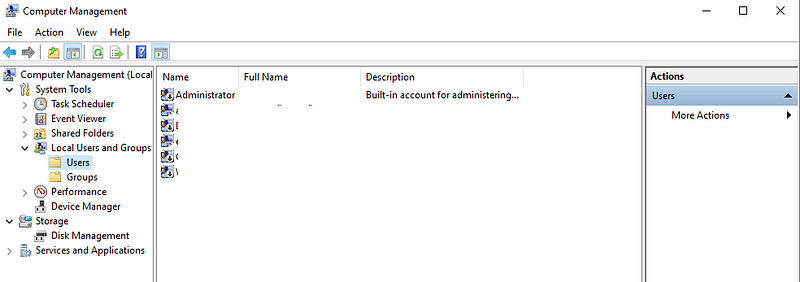
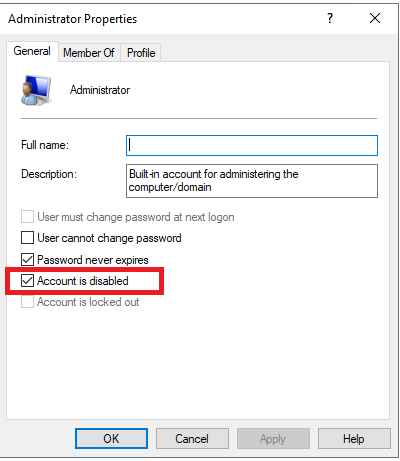
<p>Bilgisayar yönetimi uygulamasını çalıştırın. “Yerel Kullanıcılar Ve Gruplar” dalı içinde “Kullanıcılar” dalını seçin. Sağ tarafta administrator hesabının göreceksiniz. Bu hesaba sağ tıklayarak özellikler penceresini açın. açılan pencerede Genel sekmesinde “Hesap devre dışı” seçimi mevcut. Aktifleştirmek için seçimi kaldırmak, pasifleştirmek için seçmek gerekir.</p>


<figure class="wp-block-image is-style-default"><img decoding="async" src="https://cdn-images-1.medium.com/max/800/1*0otO-JdHrgjxHwbx01Wdmw.png" alt=""/></figure>


<figure class="wp-block-image is-style-default"><img decoding="async" src="https://cdn-images-1.medium.com/max/800/1*5Rr5zm3AgwM3mpnP8LHazA.png" alt=""/></figure>


<hr class="wp-block-separator"/>


<h3 class="wp-block-heading">Komut Satırı</h3>


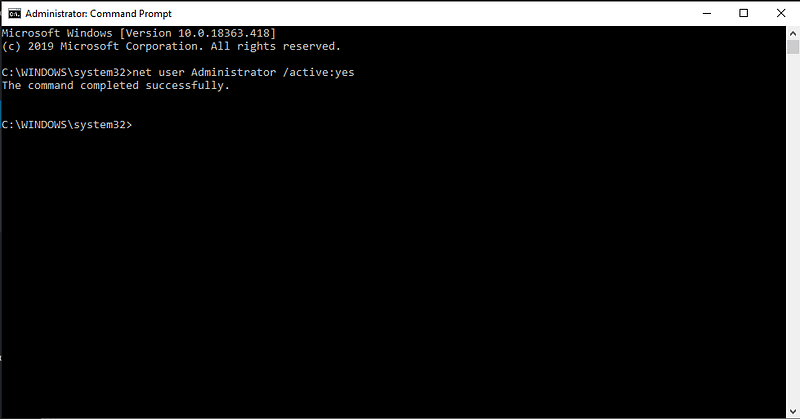
<p>Command Prompt(Komut İstemi) uygulamasını yönetici olarak çalıştırın</p>


<p>Aktifleştirmek için aşağıdaki kodu yazın “Enter” tuşuna basın.&nbsp;</p>


<pre class="wp-block-preformatted">net user Administrator / active:yes</pre>


<figure class="wp-block-image is-style-default"><img decoding="async" src="https://cdn-images-1.medium.com/max/800/0*YPGPpDiFEpwGiTAF.png" alt=""/></figure>


<p>Pasif yapmak için aşağıdaki kodu yazın “Enter” tuşuna basın.</p>


<pre class="wp-block-preformatted">net user Administrator / active:no</pre>


<figure class="wp-block-image is-style-default"><img decoding="async" src="https://cdn-images-1.medium.com/max/800/0*Uqj6RHsTcxknxmD5.png" alt=""/></figure>


<hr class="wp-block-separator"/>


<h4 class="wp-block-heading">PowerShell</h4>


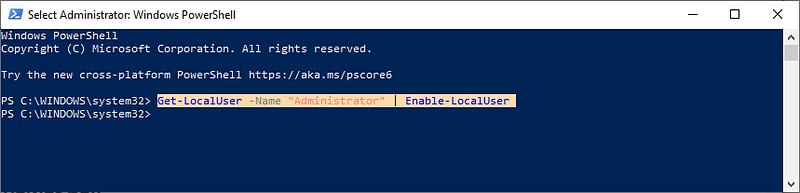
<p>PowerShell uygulamasını yönetici olarak çalıştırın.</p>


<p>Aktifleştirmek için ve aşağıdaki komutu yazın “Enter” tuşuna basın.</p>


<pre class="wp-block-preformatted">Get-LocalUser -Name “Administrator” | Enable-LocalUser</pre>


<figure class="wp-block-image is-style-default"><img decoding="async" src="https://cdn-images-1.medium.com/max/800/1*a8ejuOv_J4cW9diW_n7KnQ.png" alt=""/></figure>


<p>Pasif yapmak için ve aşağıdaki komutu yazın “Enter” tuşuna basın.</p>


<pre class="wp-block-preformatted">Get-LocalUser -Name “Administrator” | Disable-LocalUser</pre>


<figure class="wp-block-image is-style-default"><img decoding="async" src="https://cdn-images-1.medium.com/max/800/1*FeZg-uliYwPrjdkq0SAhFg.png" alt=""/></figure>


<hr class="wp-block-separator"/>


<p>Aktifleştirme işlemi sonrası oturum değiştirme işlemi ile Administrator kullanıcısına geçebilirsiniz.</p>


<figure class="wp-block-image is-style-default"><img decoding="async" src="https://cdn-images-1.medium.com/max/800/1*qNxT38AZUuK-f1k5C7Tp_g.png" alt=""/></figure>
]]></content:encoded>
					
					<wfw:commentRss>https://blog.ahmetozgunozcan.com.tr/administrator-hesabini-aktiflestirme/feed/</wfw:commentRss>
			<slash:comments>0</slash:comments>
		
		
			</item>
	</channel>
</rss>